
Update the Palworld Server Version on Windows Server (Palworld 1.0)

Quick Answer
Palworld 1.0 launched on July 10, 2026, leaving Early Access with the new World Tree region, 72 new Pals (287 total), and server clustering for dedicated servers. Because 1.0 is a major version jump, your dedicated server has to be updated to match the new client — an out-of-date server shows a version-mismatch error when players try to join. On a LightNode Windows VPS you update in three steps: (1) close the running PalServer process, (2) run the Palu.ps1 update script with PowerShell, and (3) point the desktop shortcut and the auto-start scheduled task at the new PalServer-Win64-Shipping.exe path. Your existing save carries over — the 1.0 update does not force a world wipe.
Introduction
When you first create a server — or whenever a major Palworld update such as 1.0 (July 10, 2026) ships — the server version will be too low to match the latest client, and players will get a version-mismatch error.
You need to update your game server version.
This article will show you how to update your Palworld game server to the latest version on a Windows VPS Server.
Steps
Firstly
-
Close the Pal application in the Task Manager.
-
Then open the root directory of the C drive, right-click the Palu.ps1 file,
-
Click Run with PowerShell.
-
Wait for the entire upgrade process to complete.
-
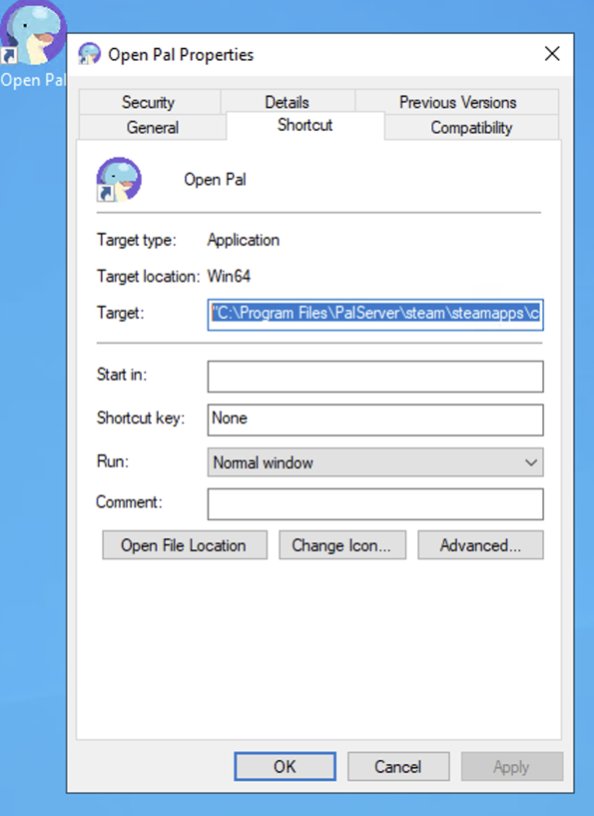
After completion, right-click the Open Pal shortcut on the desktop - Properties - Path, select all and modify it to
"C:\Program Files\PalServer\steam\steamapps\common\PalServer\Pal\Binaries\Win64\PalServer-Win64-Shipping.exe”
Secondly
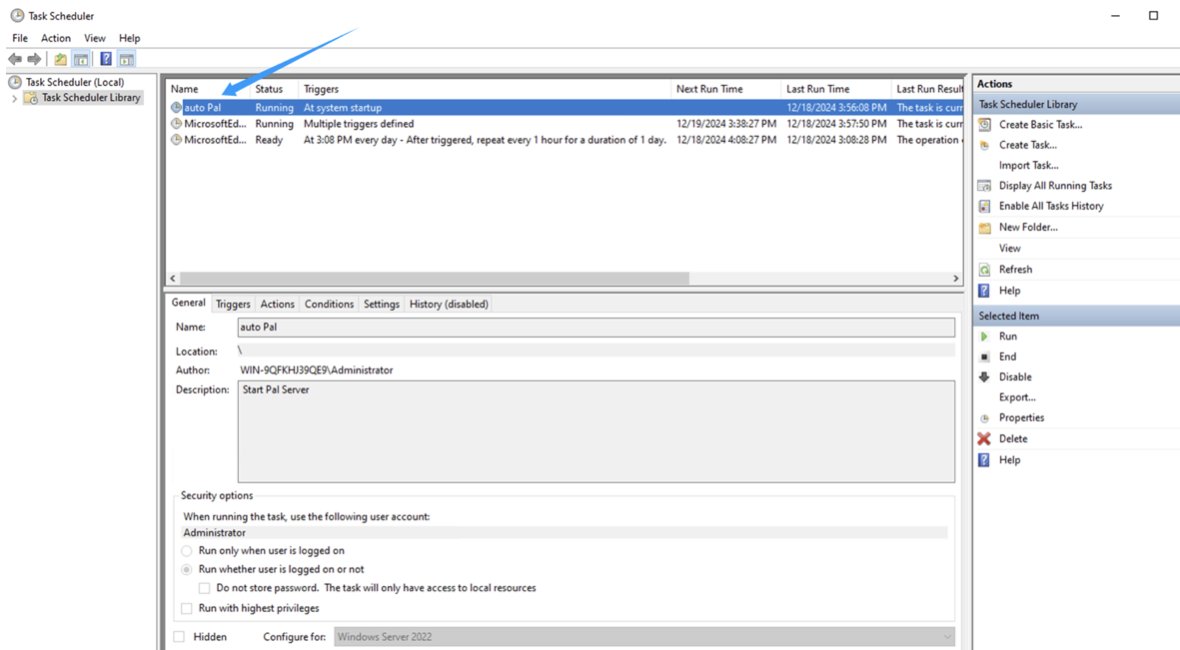
You also need to modify the path in the self-starting scheduled task.
The process is as follows,
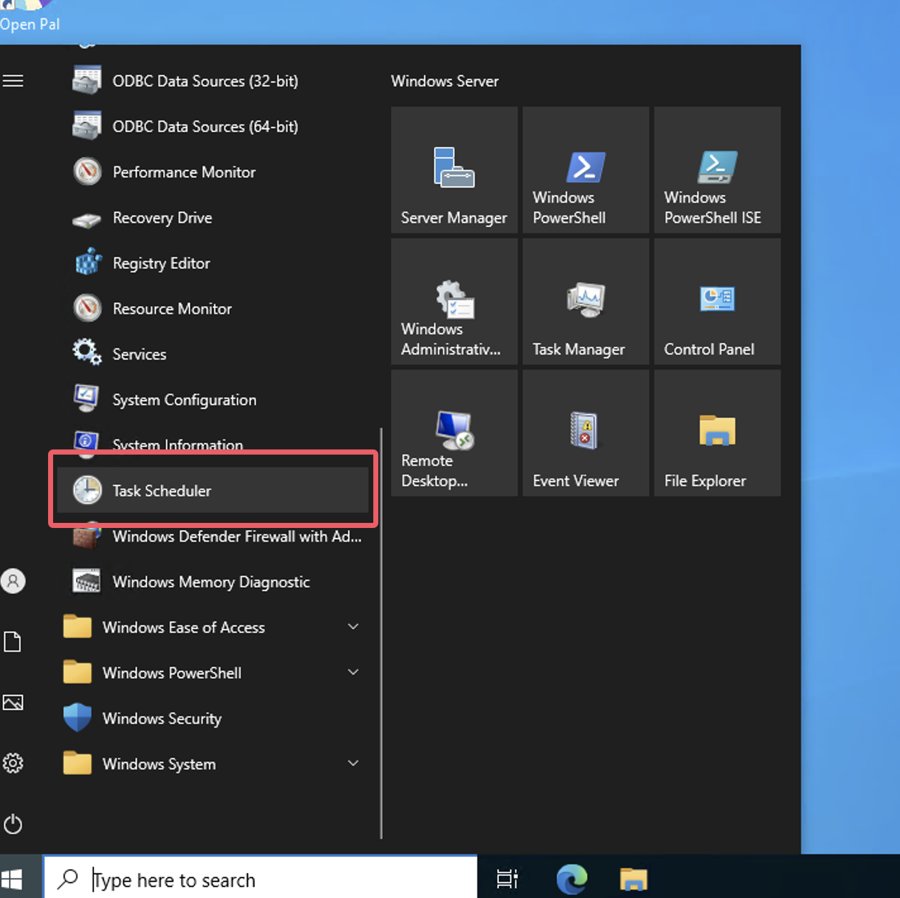
- Select Task Schedule in the Start menu - Windows Management Tools
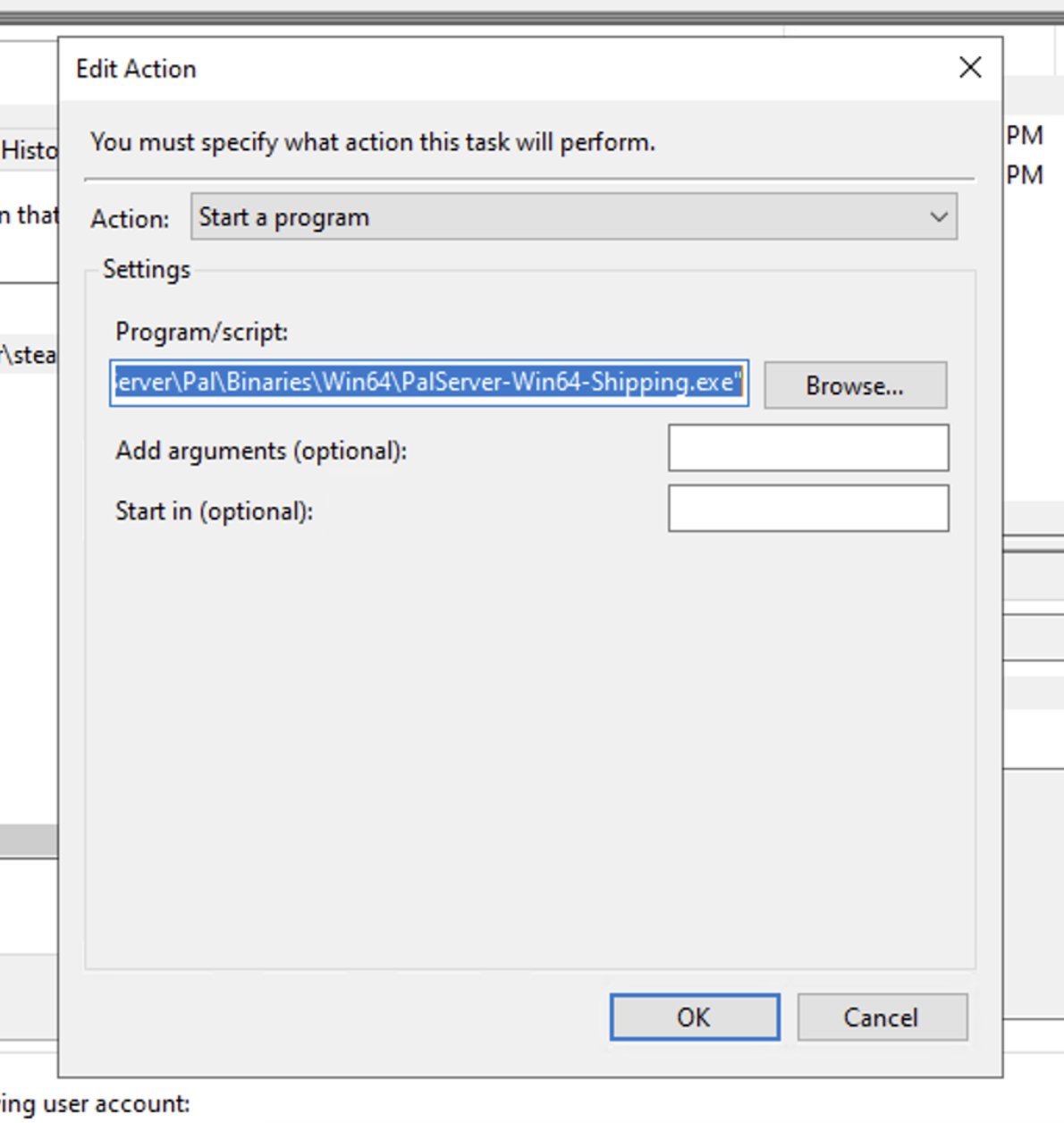
- Double-click the auto Pal task
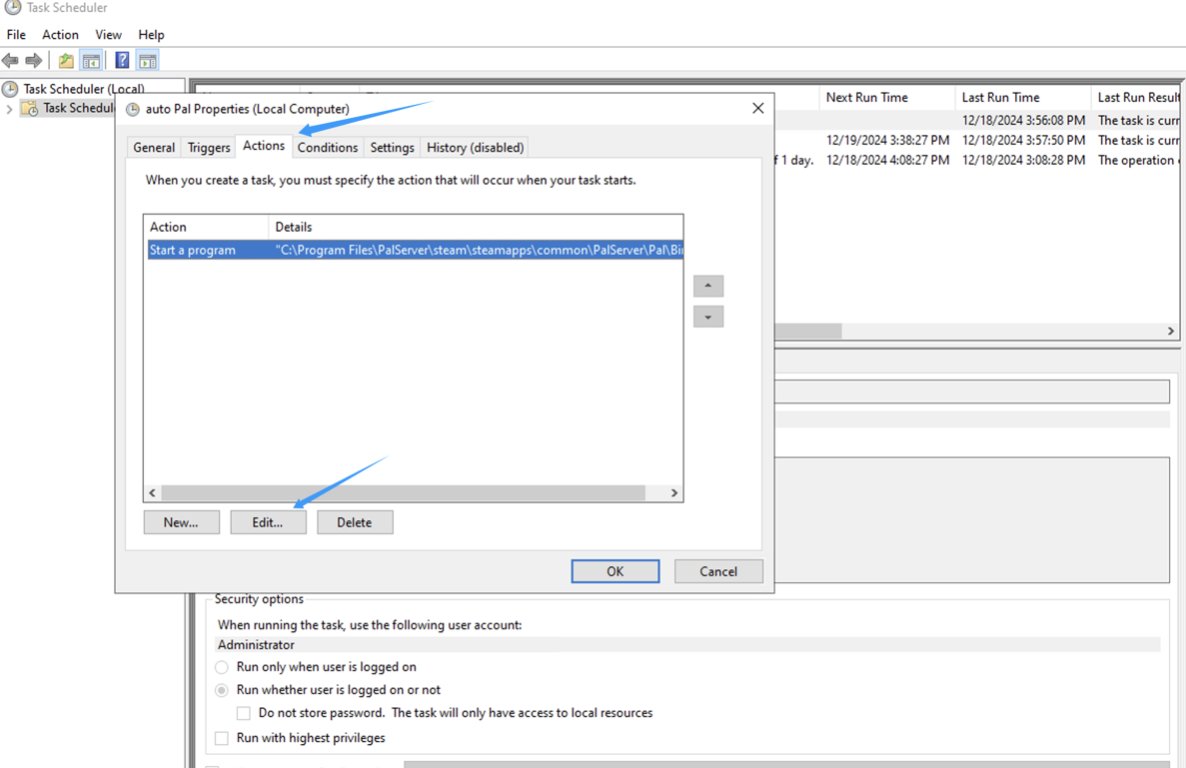
- In the action, select the Edit button,
-
Replace the path "C:\Program Files\PalServer\steam\steamapps\common\PalServer\Pal\Binaries\Win64\PalServer-Win64-Shipping.exe"
-
With the original path, click OK, and verify the administrator password.
Finally
Then restart the server to verify whether the self-start is successful. (If you do not need verification, you can directly double-click Open Pal on the desktop to start the server)