
Connect an AI Agent to Steel Browser on a VPS: A Practical Guide

An AI agent needs a browser when its task goes beyond calling an API: reading a rendered page, filling a form or inspecting a result. Steel Browser supplies that browser environment on your VPS. Your model decides what to do; your agent's browser tools execute the actions and return observations. This guide uses LightNode's Steel Browser first-boot installer and a small Playwright example.
Separate the model, the agent and the browser
A useful workflow is: task → AI agent → browser tool → Steel on the VPS → observation back to the agent. The model and agent can run on your computer or in your own service. Steel runs the remote browser and exposes HTTP and CDP interfaces. A VPS keeps the browser service available while the server runs; an agent on your laptop still stops if that laptop sleeps. Steel does not schedule tasks or supply model inference for you.
1. Deploy Steel Browser Latest
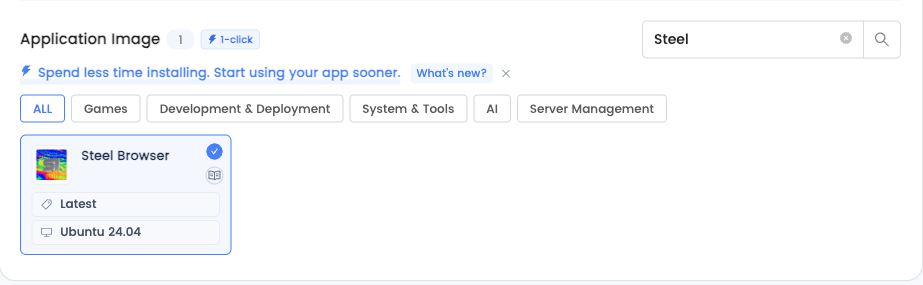
In the LightNode instance creator, choose an available location, Steel Browser, Latest and Ubuntu 24.04. Select at least 4 GB RAM; use 8 GB or more for heavier pages and additional tabs. On first boot, the installer pulls ghcr.io/steel-dev/steel-browser:latest, starts Docker and creates the browser service. Image downloads take time. Check /opt/steel-browser/install.log or read /opt/steel-browser/README.txt after connecting with your existing SSH account.
2. Connect to the browser through SSH
Run this command on your computer, replace YOUR_VPS_IP with the server IP, and use your normal SSH authentication. Keep the tunnel open while you work. If these local ports are already occupied, use another local port and change the URLs accordingly.
ssh -N -L 127.0.0.1:3000:127.0.0.1:3000 -L 127.0.0.1:9223:127.0.0.1:9223 root@YOUR_VPS_IP
Open the live viewer to see the browser and the API documentation to inspect the available endpoints. The installed service binds to the server's loopback interface; the tunnel provides the connection from your computer.
3. Start with a small browser tool
Create a local Node.js project and install Playwright. No local Chromium download is needed for this example because Chromium runs on the VPS. Save the following as browser-tool.mjs and run node browser-tool.mjs while the SSH tunnel is open.
mkdir steel-agent
cd steel-agent
npm init -y
npm install playwright@latest
import { chromium } from 'playwright';

const browser = await chromium.connectOverCDP('ws://127.0.0.1:3000/');
const page = await browser.contexts()[0].newPage();
try {
  await page.goto('https://example.com', { waitUntil: 'domcontentloaded' });
  const observation = {
    url: page.url(),
    title: await page.title(),
    text: (await page.locator('body').innerText()).slice(0, 4000),
  };
  await page.screenshot({ path: 'steel-agent.png', fullPage: true });
  console.log(JSON.stringify(observation, null, 2));
} finally {
  await page.close();
  await browser.close();
}
The script navigates to a public example page, returns a small observation and saves steel-agent.png on your computer. It closes only the tab it created. Wrap this operation as a tool in your own agent, then add explicit tools for reading a page, filling a field and clicking a control. Give the model the observed result after each action and let it decide the next step. Start with your own test pages before connecting real accounts.
4. Let a person complete website login
When a task reaches a login screen, pause the agent and open the live viewer. Complete the login yourself, including scanning a QR code or entering a verification code, then resume the task. Login depends on the website and may require the website's own approval steps. Seeing a QR code is not proof that login succeeded. In our tests, navigation, Chinese form input, selection, checking and submission worked; a website's authenticated workflow needs its own test.
5. Keep the profile and understand Latest
The default profile is stored in /opt/steel-browser/data/profile and downloads in /opt/steel-browser/data/exports. Stop the service before backing up these directories. Test cookies and local storage survived our service restart tests; a website can still revoke or expire a login. Latest is resolved when a new server installs Steel. Restarting an existing server preserves its installed image. The actual image ID and digest are recorded in /opt/steel-browser/installed-image.json.
Use the product page to choose the Steel Browser VPS setup, and the upstream references for session APIs and Playwright details. VPS resources and any model-provider usage are billed separately. For unattended work, keep the agent process running as well as the browser service.