Can You Install ChromeOS on a VPS? Build a Cloud Chrome Desktop with LightNode

Concept illustration, not a product screenshot.
You may want the same browser workspace available from another computer without carrying your main machine everywhere. A VPS with a graphical desktop can host a browser, its extensions, and the web tools you use each day. You connect to that desktop from your own device and pick up where you left off.
A LightNode VPS can run Google Chrome. The practical choices are an Ubuntu desktop or a Windows VPS with Chrome installed. The server still runs Ubuntu or Windows: LightNode's published image guide does not list ChromeOS as an operating system image. That distinction matters when you choose software, estimate resources, and explain the setup to your team.
ChromeOS, Chrome, and remote desktop are different things
Chrome is a browser. Google provides a Linux installation package that you can install on a supported Ubuntu desktop. ChromeOS is Google's operating system for dedicated devices such as Chromebooks. ChromeOS Flex targets compatible computers; Google's installation instructions focus on physical devices and USB boot, and its certification does not extend to an ordinary VPS virtual machine.
Remote desktop is how you reach a graphical session on another computer. RDP, VNC, and Chrome Remote Desktop can let you view and control a server desktop. None of them changes Ubuntu into ChromeOS.
Three ways to get a cloud desktop on LightNode
| Approach | What runs on the VPS | When it fits |
|---|---|---|
| Ubuntu Desktop (XFCE) VPS | An Ubuntu Desktop (XFCE) application image, accessed over RDP | You mainly need Chrome, web tools, and Linux applications with less initial desktop setup. |
| Windows VPS | A Windows desktop, accessed over RDP | You need Windows software alongside your browser. |
| Linux VPS with a desktop you install yourself | Ubuntu or another Linux image, plus Xfce, xRDP, or your preferred tools | You want to choose and maintain the desktop stack yourself. |
The Ubuntu RDP page describes LightNode's Ubuntu Desktop (XFCE) application image. It is a useful starting point if a remote Chrome browser is the goal. A Windows VPS makes more sense when your workflow also depends on Windows applications. Availability of images and configurations can vary by region, so check the choices shown in the instance creation console.
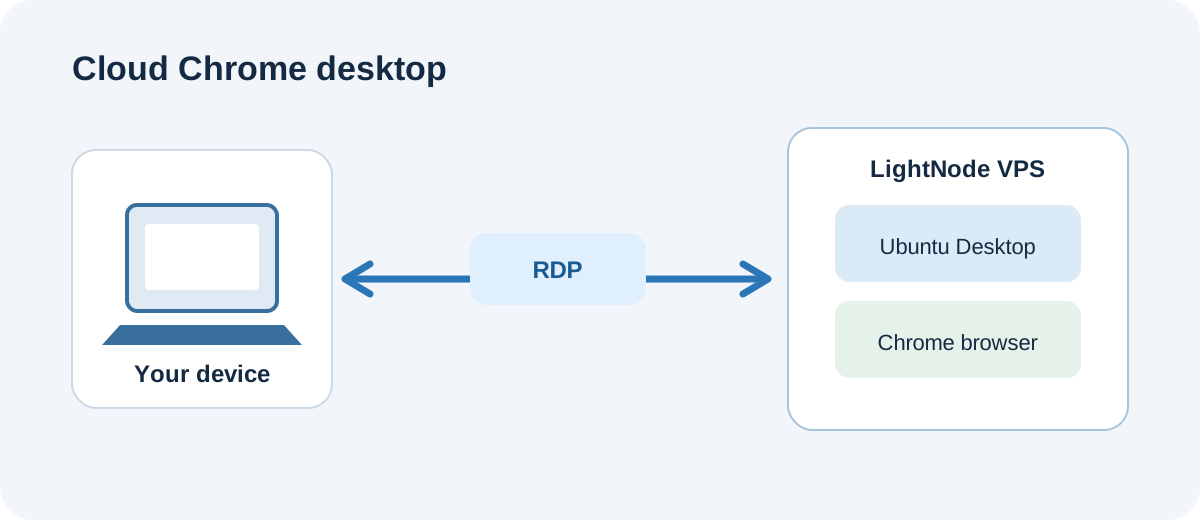
The operating system on the VPS is Ubuntu in this example; Chrome is the browser running on it.
Set up Chrome on an Ubuntu Desktop VPS
Create the instance. In the LightNode console, choose a region and a configuration, then select the Ubuntu Desktop (XFCE) application image. Record the public IP address and login details after the instance is ready. There is no ChromeOS installer involved in this route.
Connect to the desktop. Use a remote desktop client on your own computer to connect. LightNode also provides a console VNC option, which can help you inspect the instance when RDP is not working. Check the instance state, credentials, security group, and your local network if the connection fails.
Install Chrome. In the Ubuntu session, download the .deb package from the official Chrome site and open it with the system's software installer. Google's Linux installation guide describes supported systems and setup. Review the terms shown on first launch. Open the sites you actually use and check fonts, input methods, clipboard behavior, and page interactions.
Reconnect and test persistence. Close the remote session, connect again from another device, and confirm that Chrome still opens as expected. Browser data remains in that VPS user's profile. Signing in to a Google account and enabling sync is your choice. If several people use the server, give them separate system and browser profiles rather than sharing a signed-in personal account.
A desktop and several browser tabs consume memory. Video, meetings, and graphics-heavy pages also depend on the instance size and network latency. LightNode offers hourly billing, so test a realistic set of tabs before settling on a configuration. Use a strong password and restrict remote access through the security group. A powered-off instance is still billed; release it in the console when you no longer need it.
For detailed installation steps, see our guide to installing Chrome on Ubuntu.
Other ways to access or provide a desktop
Chrome Remote Desktop is an option if you already have an Ubuntu desktop and prefer connecting through Google's remote access service. Its Linux host component and desktop session need to be installed and configured by you. It provides remote access, not a ChromeOS installation, and LightNode does not list it as a preinstalled application image in its published image guide.
Kasm Workspaces takes a different route: it provides container-based workspaces that users open in a browser. Kasm documents installation on an Ubuntu virtual machine and lists 2 CPU cores, 4 GB of memory, and 50 GB of SSD storage as its single-server minimum. Active sessions need additional resources. It suits teams prepared to deploy and maintain the containers, user access, and images themselves. LightNode's published image guide does not list Kasm as a preinstalled application image.
For one person's remote browser, Ubuntu Desktop and RDP are usually the simpler place to begin. Chrome Remote Desktop changes the connection method; Kasm changes how the browser-accessible workspace is delivered.
Is Meta Muse's cloud computer running ChromeOS?
Meta's technical account of Muse describes a dedicated Linux virtual machine for each user, with a Chromium-based browser and an isolated environment for agent tasks. It mentions a Debian image as the root filesystem of an agent runtime container; that does not establish Debian as the operating system of the whole virtual machine. Meta describes handing tasks to Muse, watching browser activity, and taking over when needed. It does not present Muse as a general desktop that users log into over RDP.
The useful comparison is the cloud browser use case. A LightNode Ubuntu Desktop or Windows VPS can provide an independent cloud computer on which you install and remotely use a browser. If you want an AI agent to operate that browser, you must deploy and maintain agent software as well. Muse's credential isolation, action approvals, and network controls are separate capabilities; installing a desktop and Chrome does not provide them.
Frequently asked questions
Can I install ChromeOS directly after launching a LightNode VPS?
Do not treat that as a ready-to-deploy option. ChromeOS is aimed at dedicated hardware, and Google does not certify ordinary VPS virtual machines for ChromeOS Flex. The open-source ChromiumOS project has a developer guide for virtual machine images, but ChromiumOS is a different product from Google's ChromeOS. LightNode's published image guide does not list it as an available operating system image.
Which option should I choose if I only need remote Chrome?
Start by checking the Ubuntu Desktop (XFCE) application image in your chosen region. Launch the VPS, connect to the desktop, and install Chrome using Google's instructions. Choose Windows VPS if you also need Windows applications. Test the memory use and remote experience with the sites you plan to open.
Are Chrome Remote Desktop and the Chrome browser the same product?
No. Chrome opens websites; Chrome Remote Desktop lets you access another computer. You can install Chrome on Ubuntu and optionally configure Chrome Remote Desktop, but the remote access tool does not change the server operating system.
To try this setup, see the LightNode Ubuntu RDP server or Windows VPS. If you want an AI agent to keep using a browser on the VPS, read our OpenMuse self-hosting guide for the extra components and service dependencies.